TL;DR: OnlyFans membership video playback can be affected by platform playback protection, browser rendering paths, and hardware acceleration. This is why OBS, Windows Game Bar, QuickTime, and other standard screen recorders may show black where the video should be. A more reliable workflow is browser recording mode during normal playback for content your account is authorized to view and platform terms allow you to save.
You set up OBS, positioned your capture window over the OnlyFans player, hit Record — and got a perfect black rectangle where the video should be. Or you tried Windows Game Bar, iPhone’s native screen record, or QuickTime on Mac, and got the same result: everything on screen recorded fine except the OnlyFans video, which appeared as solid black.
This is usually not a bug in your screen recorder. It is a mismatch between the membership video playback environment and the layer where standard screen recorders operate.
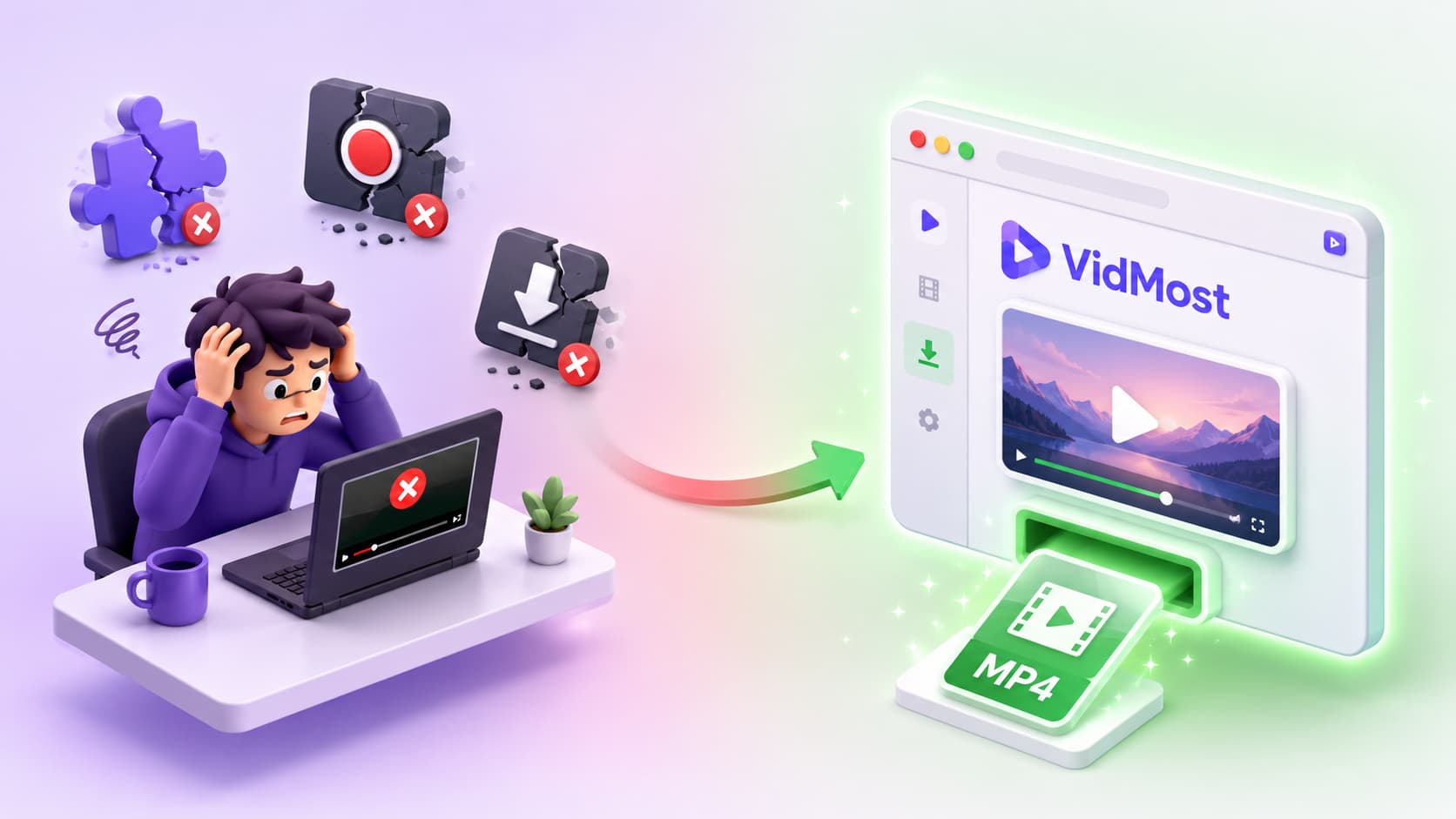
What Causes the Black Screen
When membership video begins playing in a browser, platform playback protection, browser rendering, and hardware acceleration can affect standard screen recorders. When the recorder asks the system for display frames, it may not receive the actual video area.
The result is that the recorder captures the player surroundings correctly but fills the video area with black pixels (iMobie, 2026). It has not reliably received the actual video frames.
This protection applies across operating systems:
| Platform | Screen Recorder | OnlyFans Result |
|---|---|---|
| Windows | OBS Studio | Black rectangle |
| Windows | Xbox Game Bar | Black rectangle |
| Windows | ShareX | Black rectangle |
| macOS | QuickTime | Black rectangle |
| macOS | Screenshot toolbar | Black rectangle |
| iOS | Native screen record | Black screen or blocked |
| Android | Native screen record | Black screen (varies by device) |
Why the Black Screen Appears Only on OnlyFans (Not Other Tabs)
This kind of playback protection is content-specific, not browser-wide. If you have three browser tabs open — Gmail, YouTube, and OnlyFans — screen recording may capture Gmail and YouTube normally. Only the OnlyFans video player area shows black because the issue appears only while membership video is actively rendering.
This is why the black screen appears to “follow” the OnlyFans player: move the window, resize it, switch tabs and come back — the protected area remains black, while everything else records normally.
Why Lowering Screen Resolution or Disabling Hardware Acceleration Does Not Help
A common suggestion is to disable hardware acceleration in the browser, which changes how video is rendered. This may change the result on some systems, but it is not guaranteed. Whether the GPU or CPU participates in rendering, standard screen recorders may still fail to capture the player area.
Disabling hardware acceleration may occasionally interfere with the output protection mechanism on older systems or specific driver configurations — but this is inconsistent, device-dependent, and not a reliable solution.
A More Reliable Workflow: Browser Recording Mode
The black screen problem exists because standard screen recorders depend on system display output, while membership video playback uses a more complex rendering path. The practical workflow is browser recording mode: the video plays normally inside VidMost’s Chromium-based browser, and VidMost records the browser-rendered playback instead of relying on the OS screen recorder.
VidMost works as a Chromium-based browser with recording mode built in. It signs in and plays the content like a normal browser, then records the browser-rendered playback for content your session can already view and platform terms allow you to save.
Result: A standard MP4 with lower black-screen risk, no OBS configuration required, no driver tweaks. Actual quality depends on the playback quality provided to the current browser session.
Step-by-Step: Recording OnlyFans Without Black Screen
- Download and install VidMost (Windows or Mac)
- Open VidMost and log in to your OnlyFans account
- Navigate to the video you want to save
- In the right panel, select Recording Mode
- Click Start Recording
- Press Play on the OnlyFans video — VidMost starts recording the playback
- Let the video play in full without skipping
- Click Stop Recording — your MP4 file is saved to the Downloads folder
Frequently Asked Questions
Will using a virtual machine solve the black screen?
Running a browser inside a VM adds another layer of OS and display abstraction, which sometimes changes recording behavior — but results are inconsistent across VM software, guest OS versions, and host configurations. It is not a reliable solution and introduces significant performance overhead.
Does a phone pointed at the screen work?
Technically yes — a phone camera pointed at a monitor is capturing reflected light, not a digital display output. The quality is poor (glare, moire patterns, ambient noise), the resolution is low, and the result is far inferior to browser recording mode. It also requires a second device and a stable setup.
Why does the black screen not appear on all OnlyFans videos?
Different videos may use different playback paths, browser states, or platform settings. Some older posts or lower-protection content may allow ordinary screen recording to work. This is content-specific, not a tool or browser setting you can reliably control.
Use VidMost within platform terms and authorization scope to save OnlyFans content you are allowed to archive.